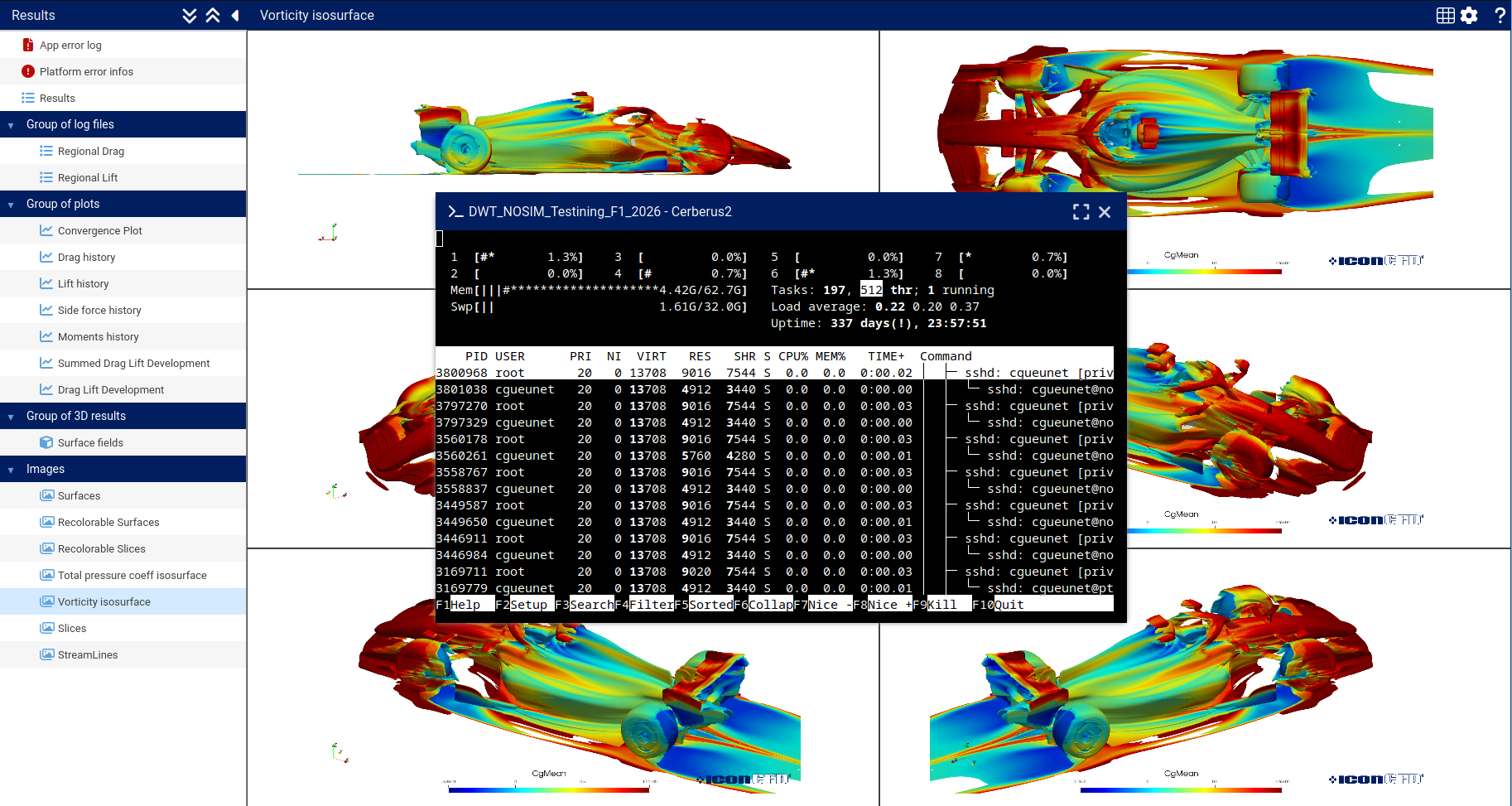
At ICON Technology & Process Consulting, our goal is to simplify how engineers and scientists build, execute, and monitor simulation workflows. Following our previous article on the Inputs tab, this post explores the Apps and Projects sections of the iconPlatform — where users add, configure, and execute the computational tools that power their workflows.
An App is a processing brick that takes some input and produces output, according to user provided parameters. The Apps tab shown below is used to register and update apps:
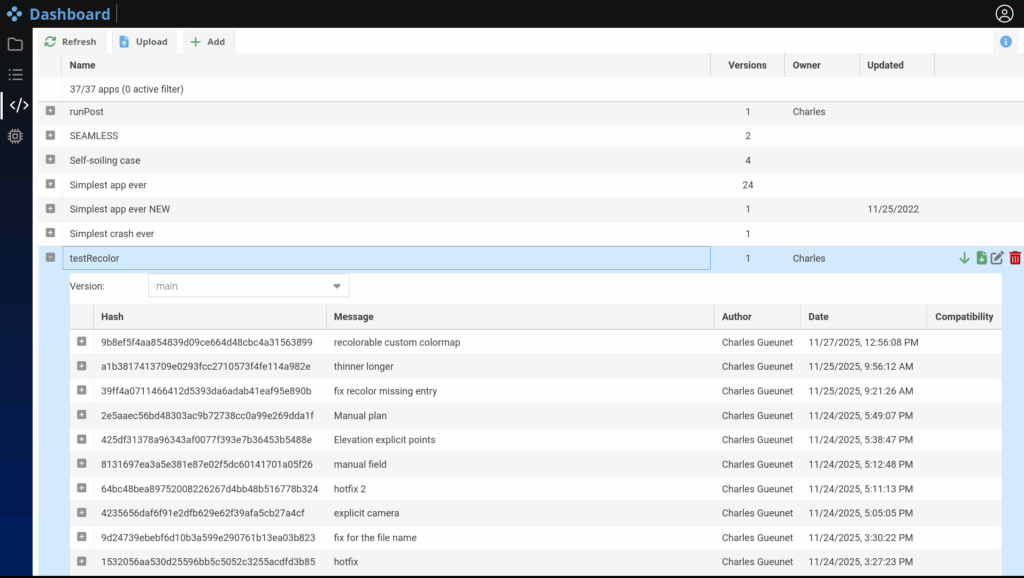
The git integration allows to fetch the last changes and visualize branches and commits.
From simple scripts to distributed solvers, every app can then be executed on the desired resources directly from the browser, in the Project tab. Each app is fully integrated with the platform’s data management system, ensuring a seamless link between inputs, computation, and results.
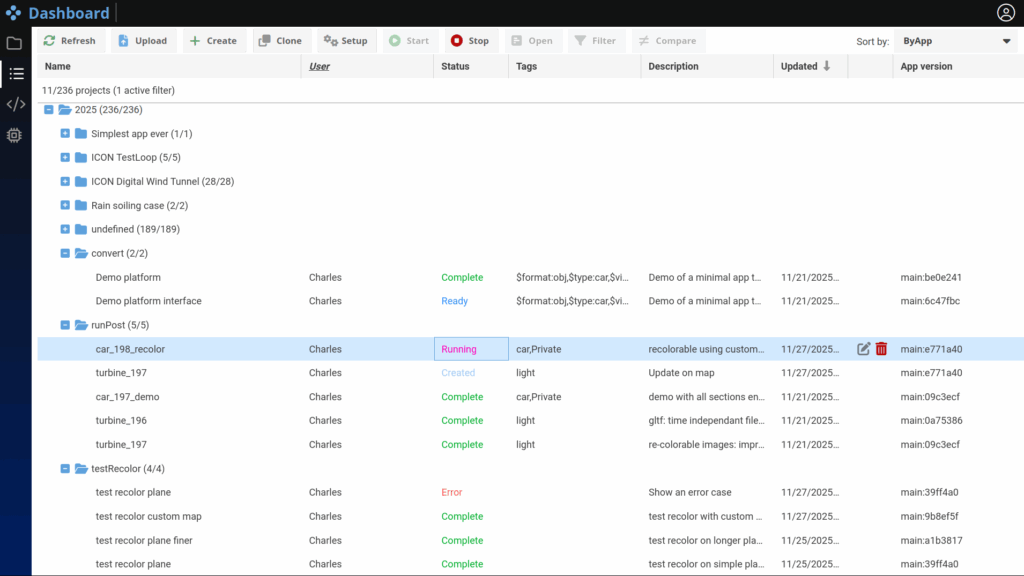
As for the Input tab previously described here, the Project tab supports custom hierarchies based on tags, enabling flexible organization and fast retrieval. Additionally, each app instance has a clearly defined status indicator, indicating if it is: Ready, Running, Stopped, Completed or in Error state.
Any software, script, or command-line tool can be turned into an iconPlatform App with minimal effort.
To do so, you only need to provide a simple JSON manifest named app.json that defines:
In order to illustrate what such file may looks like, we will use a small converter application that takes any surface as input and generates a 3d gltf output that can be explored directly in the platform. The input of this application can be an assembly from the object store or a path on the remote filesystem. From the app.json file, iconPlatform will create an interactive user interface to configure each instance of the app.
{
  "$schema": "http://iconPlatform.tld/schemas/app.json",
  "mandatory": true,
  "flatten": false,
  "name": "convert",
  "entryPoint": "runConvert.sh",
  "resultDir": "results",
  "requirements": {
    "software": {},
    "hardware": {
      "minMPIRanks": 8,
      "minTotalRAMGB": 4
    }
  },
  "options": [
    {
      "name": "input",
      "displayText": "Input geometry",
      "type": "group",
      "options": [
        {
          "name": "mode",
          "displayText": "Mode",
          "type": "combobox",
          "default": "Assembly",
          "choices": [
            "Assembly",
            "Path"
          ]
        },
        {
          "name": "file",
          "type": "inputFile",
          "subTypes": [
            "Assembly"
          ],
          "displayIf": "@root.input.mode=='Assembly'",
          "displayText": "Geometry",
          "toolTip": "Add the required input geometry (from the Input tab)"
        },
        {
          "name": "path",
          "type": "string",
          "default": "",
          "displayIf": "@root.input.mode=='Path'",
          "displayText": "Geometry path",
          "toolTip": "Add the required input geometry (from remote the filesystem)"
        }
      ]
    }
  ]
}
This app allows the user to provide an input file either using a path (string) or by selecting a file. Here is the corresponding interface for this simple example:
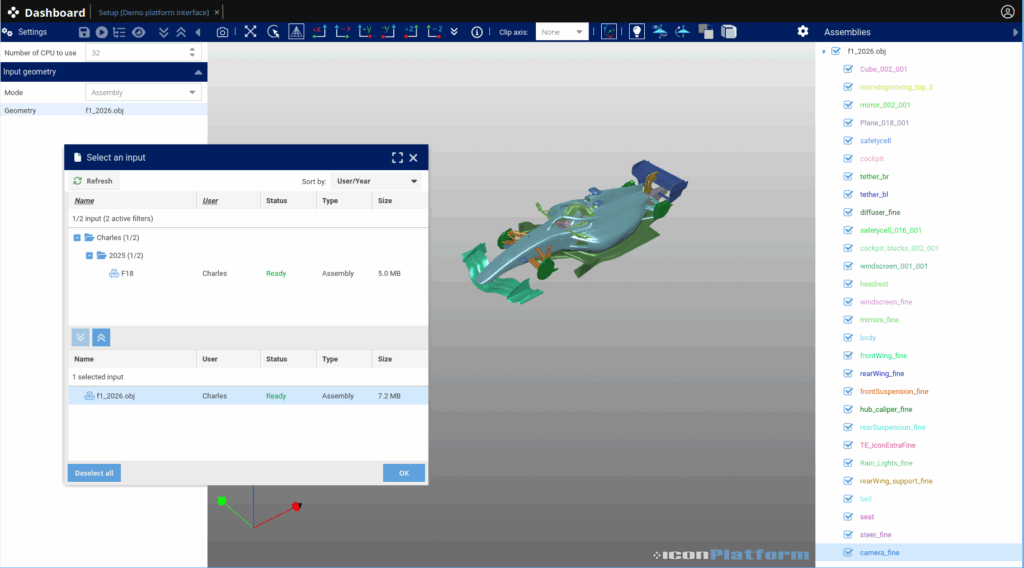
A second JSON file is used describe the output schema, allowing the platform to automatically generate another interface to explore the results:
{
  "$schema": "https://iconPlatform.com/schema/autopost.json",
  "name": "AutomaticPost",
  "results": [
    {
      "type": "3d",
      "name": "result",
      "file": "result/result",
      "toolTip": "Explore"
    }
  ]
}
This metadata-driven approach decouples the platform from specific solvers or environments: any executable or solver can become a platform-ready App.
IconPlatform uses a templating system to make applications fully modular and context-aware. This means apps can dynamically adapt their configuration based on information from:
For instance, here is the entry point script of our convert application. This script retrieves the environment information (including the MPI commands to use) from the templating system to launch the data processing in a distributed fashion. User provided parameters like the input data are setup similarly. In this example the main processing is done with pvbatch and a python script.
#!/bin/bash

# Retrieve the launch command
MPICommand='{{resource.scheduler.mpi.MPICommand}}';
MPIParallel='{{resource.scheduler.mpi.MPIParallel}}';
NUMBEROFCORES='{{data.project.nCPUs}}';
MPIOptions='{{resource.scheduler.mpi.MPIOptions}}';

# Run the processing
$MPICommand $MPIParallel $NUMBEROFCORES $MPIOptions pvbatch --dr --mpi convert.py
import paraview

from paraview.simple import OpenDataFile, GroupDatasets, ExtractSurface, SaveData

paraview.compatibility.major = 5
paraview.compatibility.minor = 11
paraview.simple._DisableFirstRenderCameraReset()

{{#if (equals project.data.input.mode "Assembly")}}
# Chosen assembly is available here:
import os
folder = "./constant/triSurface"
inputFile = os.path.join(folder, os.listdir(folder)[0])
{{else}}
# Retrieve the path chosen by the user:
inputFile = {{project.data.input.path}}
{{/if}}

# Demo Pipeline
inputData = OpenDataFile(inputFile)
groupDatasets1 = GroupDatasets(registrationName="GroupDatasets1", Input=inputData)
extractSurface1 = ExtractSurface(
    registrationName="ExtractSurface1", Input=groupDatasets1
)
SaveData("results/result.gltf", proxy=extractSurface1)
The templating system uses expressions and control statements enclosed within {{ }} to dynamically insert values or logic. It enables seamless integration of metadata and user driven parameters in the workflow.
In order to assist with app development even further, we provide a dedicated VS Code extension that integrates directly with iconPlatform. This plugin exposes the full templating context while editing your app in order to validate your implementation. The extension also provides navigation helpers, useful to tune the templating system to your needs.
The Project Tab follows the same interface philosophy as the Inputs Tab. Input forms are generated automatically from the application’s JSON manifest (cf. Figure 3). All parameters can be edited, saved, and even reused as templates as initial configuration for future runs. Using output definitions, the platform also creates an interactive results view, allowing users to explore their data directly within the browser.
Regarding input and output, corresponding interfaces make use of our native widgets to create an intuitive user experience. It includes:
This approach ensures a consistent user experience throughout the simulation workflow, for initial configuration to result exploration.
An app configured by the user along with the corresponding data is named a Project, hence the name of the Project Tab. Projects can be executed across any computational infrastructure, from a single node to large-scale HPC clusters, without users needing to manage low-level details. In this regard, iconPlatform natively integrates with major workload managers such as Slurm and LSF. As seen in Figure 2, the status of each app is reported in live.
This Project Tab is the main interface for project configurations, job submissions, environment setup, as well as status and error reporting.
The Apps system follows the same guiding principles as the rest of iconPlatform:
This design empowers users to transform their existing tools into integrated apps — without modifying the underlying code.
To learn more about iconPlatform and how it can streamline your engineering simulations, visit:
🔗 https://www.iconcfd.com/contact-us/

© ICON 2025. All rights reserved. | Legal | Website by FocusedCRE
